
Honda Fit: Address Book
 INFO button
► Setup
►Personal Information►Address Book
Store up to 200 address entries in two address books (User 1 and User 2). You can add, edit, and delete information in the address books.
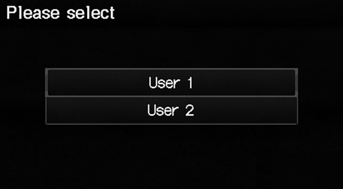
Select the user name to edit the user address book.
Displays the address book.
► Select the user name to change the user address book.
► Select the category tab to display only the address in the selected category.
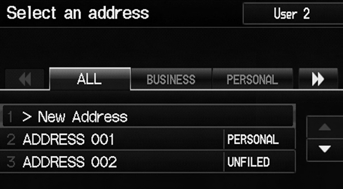
The number of addresses is shared by the two address books. For example, if User 1 has 150 addresses, User 2 can only have 50.
If you have PIN-protected your address book, enter your PIN when prompted. Select OK. PINs are optional.
Any address book categories you create are also displayed on the Select an Address screen.
Adding an Address Book Entry
INFO button
► Setup
►Personal Information►Address Book
This section explains how to enter the name and address.
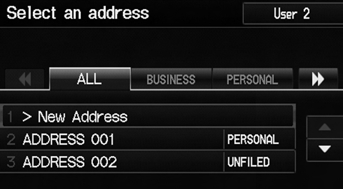
1. Select New Address.
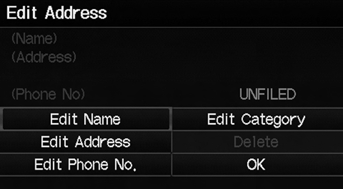
2. Select an item.
The following items are available: • Edit Name: Edits the name of the entry.
• Edit Address: Edits the address of the entry.
• Edit Phone No.: Edits the phone number of the entry.
• Edit Category: Specifies the category of the entry.
• Delete: Deletes the entry.
If you do not give the address a name, one is automatically assigned (e.g., Address 001). You can re-enter, edit, or make changes to any entry.
“Address” is the only required field.
3. Select Edit Name.
4. Enter a name or title. Select OK.
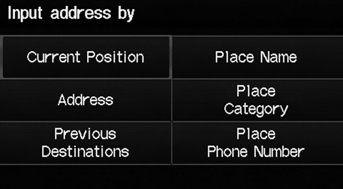
5. Select Edit Address.
6. Select an item for specifying the address.
The following items are available:
• Current Position: Select your current location.
• Address: Enter an address on the character input screen when prompted.
• Previous Destinations: Select a previous destination.
• Place Name: Enter the name of a place/landmark.
• Place Category: Select a category to search for a place/landmark (e.g., Banking, Lodging).
• Place Phone Number: Enter the phone number of a place/landmark.
When you use Place Name or Place Category, the name and phone number are automatically entered.
Editing an Address Book Entry
INFO button
► Setup
►Personal Information►Address Book
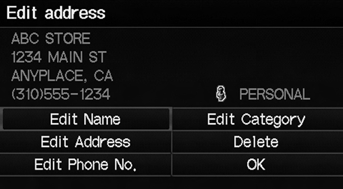
1. Select the address to edit.
2. Enter the name, address, phone number, and category fields.
3. Select OK.
The entered contents are displayed on the Edit address screen.
Selecting an Address Book Category
INFO button
► Setup
►Personal Information►Address Book
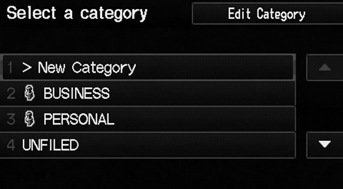
1. Select an address.
2. Select Edit Category.
3. Select BUSINESS, PERSONAL, or a category you created.
You can have up to 100 categories (including “UNFILED”). These categories can be shared with User 1 and User 2. For example, if User 1 creates some categories, User 2 can also use them.
If you delete a category that is used by other addresses, the category type for those addresses changes to “UNFILED.”
Category Icons
The following icons can be selected for a category:
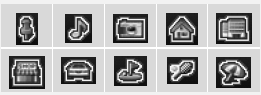
■ Creating a New Category 1. Select New Category.
2. Enter a name and select an icon when prompted. Select OK.
► The created category is displayed in the list of categories.
■ Deleting or Editing a Category 1. Select Edit Category.
2. Select Edit Category or Delete.
3. Delete an existing category, or change the name and icon.
Deleting an Address Book Entry
INFO button
► Setup
►Personal Information►Address Book
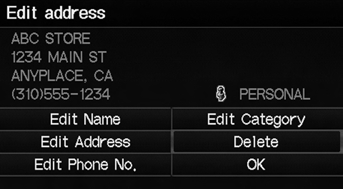
1. Select the address to delete.
2. Select Delete.
3. Select Yes.
When you transfer the vehicle to a third party, delete all address book entries.
See also:
Power Windows
Turn the ignition switch to the ON (II) position to raise or lower any window.
To open the window, push the switch down and hold it. Release the switch when you
want to stop the window. To close ...
Rear Seat Leg Guide Replacement
Push the leg guide cover (A) to release the hook (B), then pull out the
cover from the attaching plate (C) and the holder (D) of the leg guide (E).
@font-fa ...
Rocker Arm Assembly Installation
If the rocker arm assembly is disassembled, reassemble the rocker arm
assembly.
Apply engine oil to the end of the valve stem.
Install the rocker arm assembly.
...
Categories
